
Introduction#
Being a parent of teenagers means there are a lot of activities to coordinate. I always wanted an interactive calendar to hang on the wall so my wife and I could have a real time view of what activities were happening on any particular day. I had looked online for pre-built options, but they were way too expensive. So I decided to make my own!
My requirements were simple…it needed to show our Google calendar and have touch capabilities so we could make edits to the calendar without having to pull out a keyboard and mouse.
Hardware#
First, here’s a breakdown of the hardware I used. I started by getting a 32" Onn brand Roku TV. Since I wanted it to be a touchscreen, I bought this IR Touch Frame on Amazon. It just sticks to the TV frame, and you can’t tell it’s a separate piece of hardware. I also got this Mini PC mounted to the wall behind the TV to run everything.
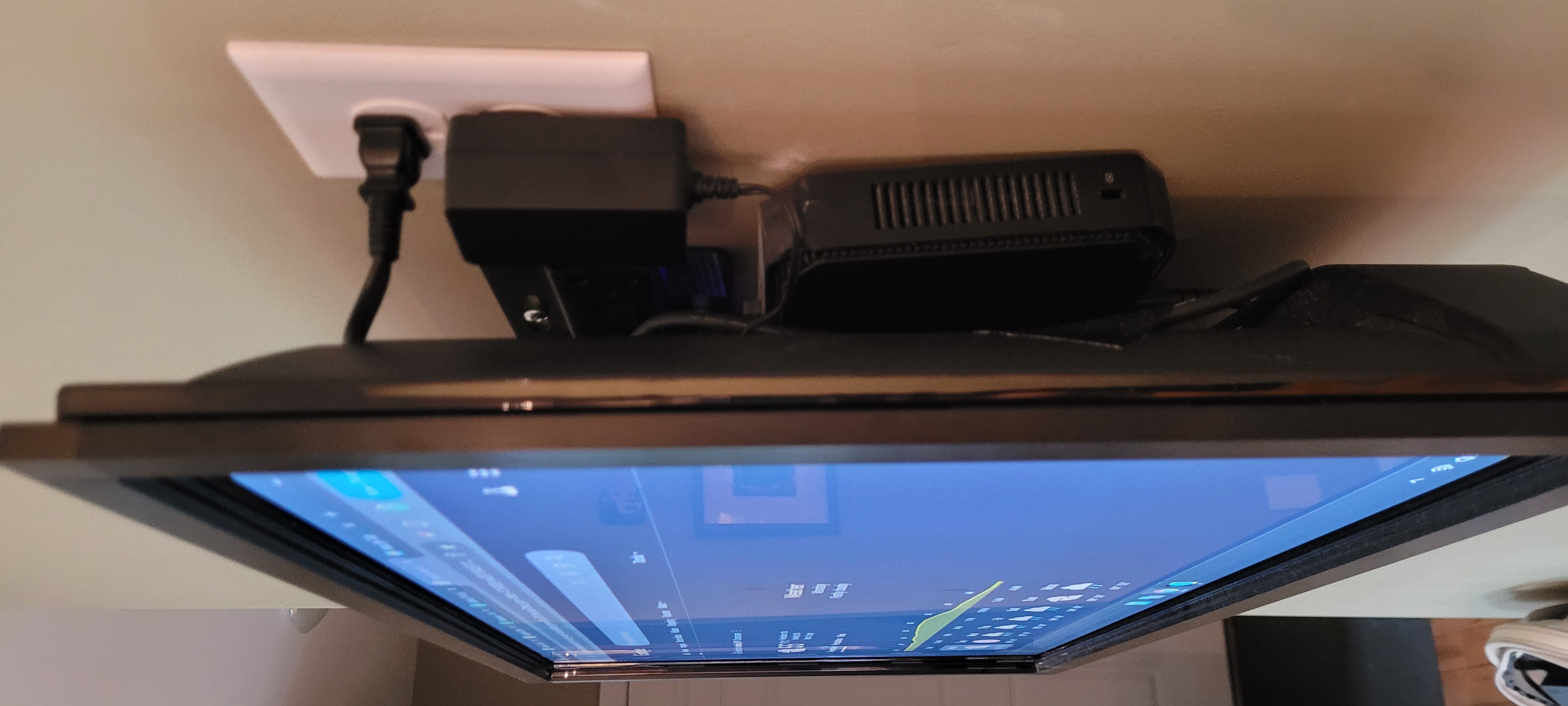
PC tucked behind the TV. The IR frame is barely noticeable
Software#
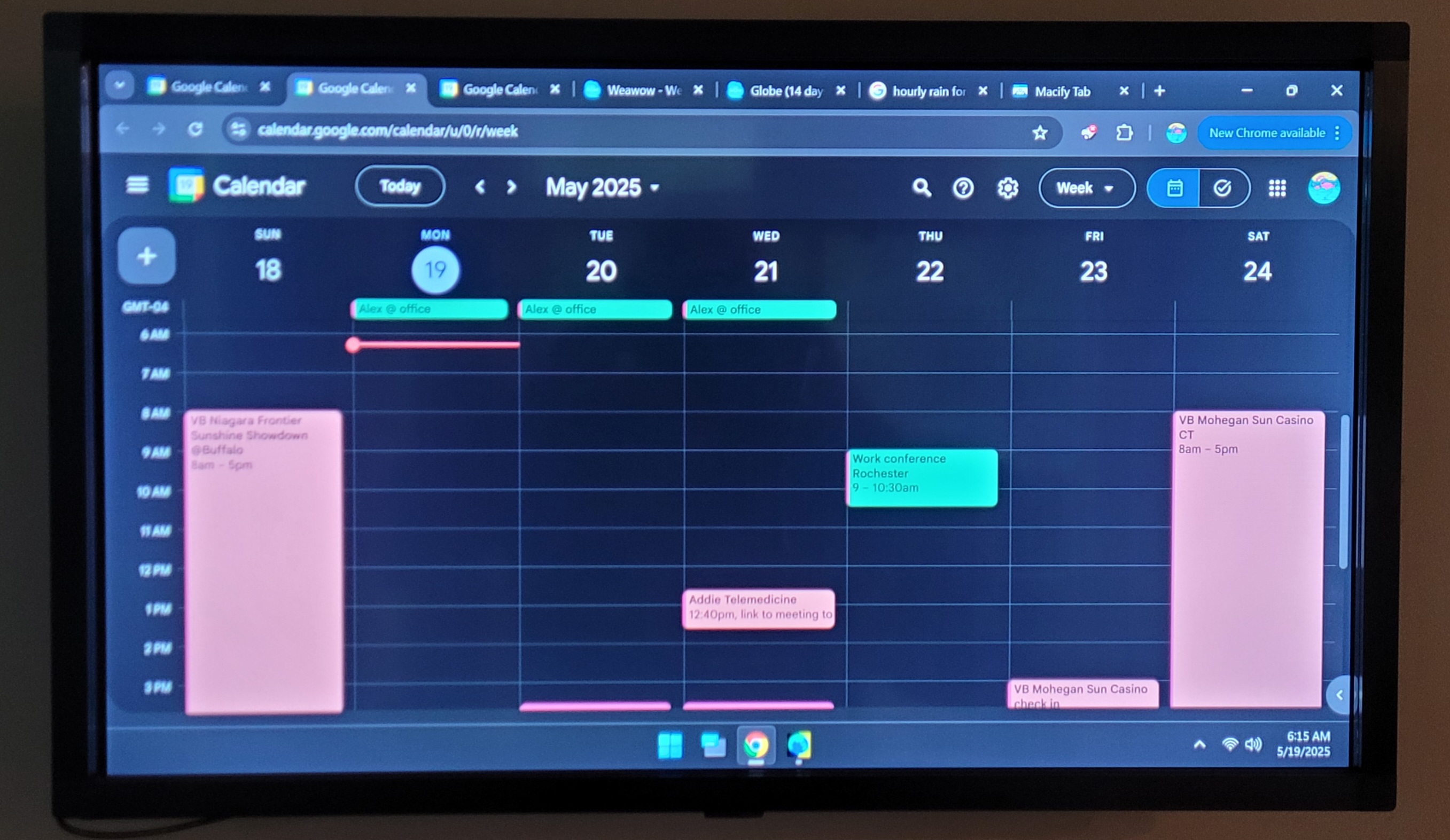
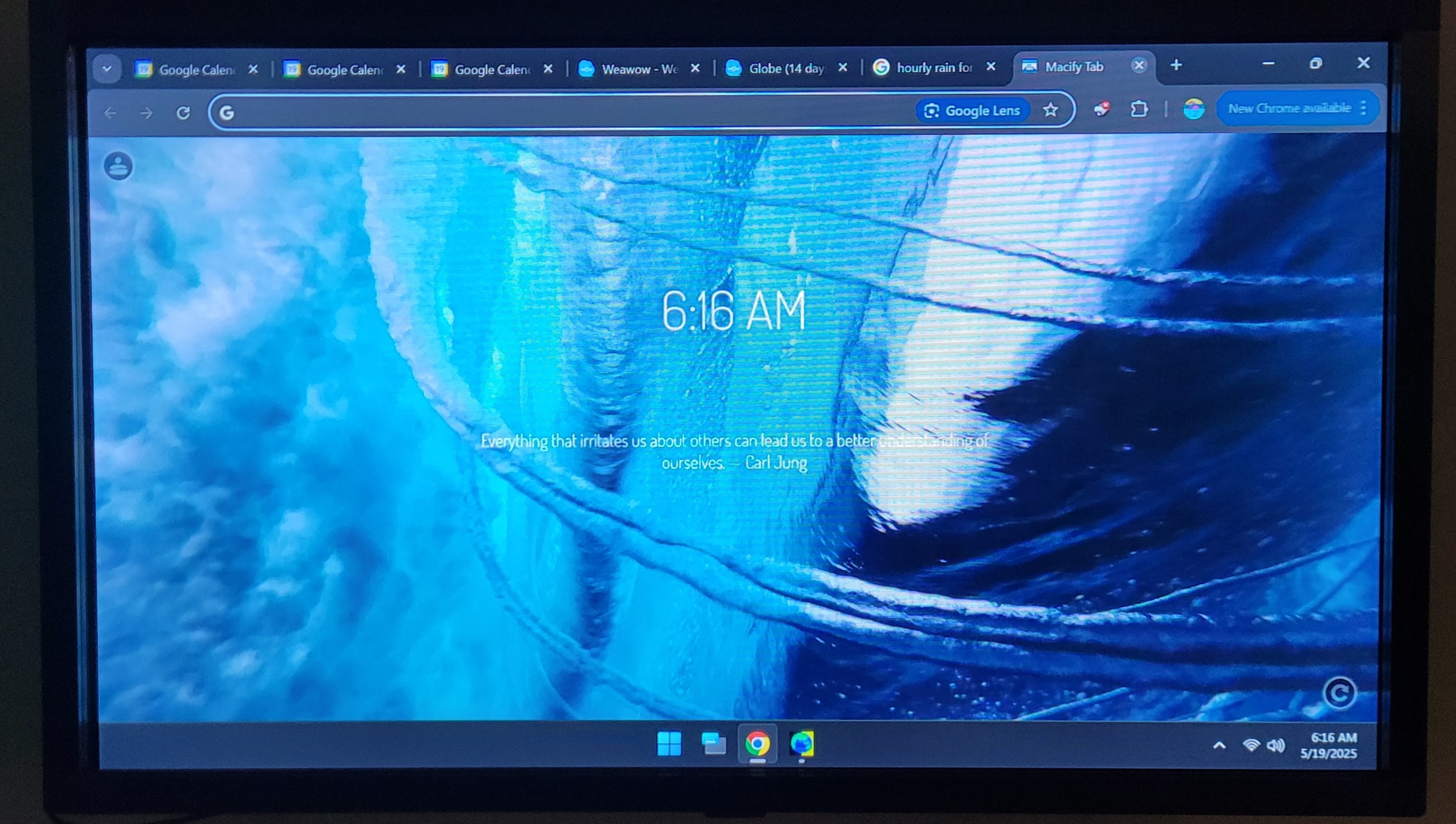
Next, let’s talk about the software. Using a Windows PC brought a lot of flexibility that would not be available in a pre-built solution. First, I use Chrome to display the Google calendar in Month, Week, and Day views, each in its own tab. I also have a tab showing the weather forecast from Weawow.com. One additional tab shows the hourly rain forecast from Google. I discovered a cool Chrome extension called Macify that will show macOS’s gorgeous screensaver aerial videos on the “New Tab” page. I didn’t want to manually cycle through the tabs, so I added the TabCarousel extension, which cycles through all open tabs every 5 minutes. All the pages are bookmarked, so they all load when I open the browser on startup.
Calendar in Month view Calendar in Week view Calendar in Day view Weawow forecast Weawow precipitation animation Hourly rain forecast New tab shows beautiful videos via Macify extension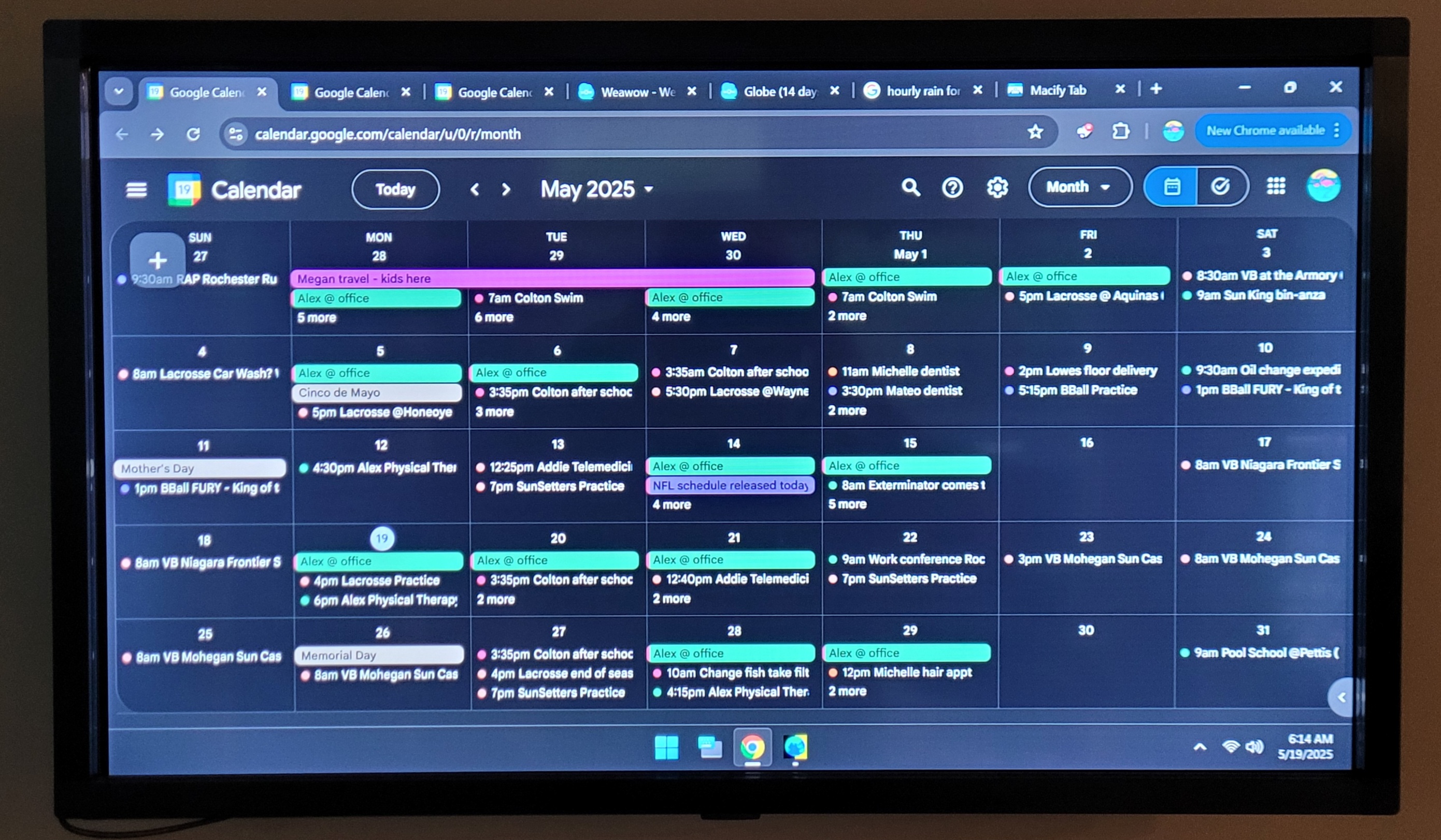
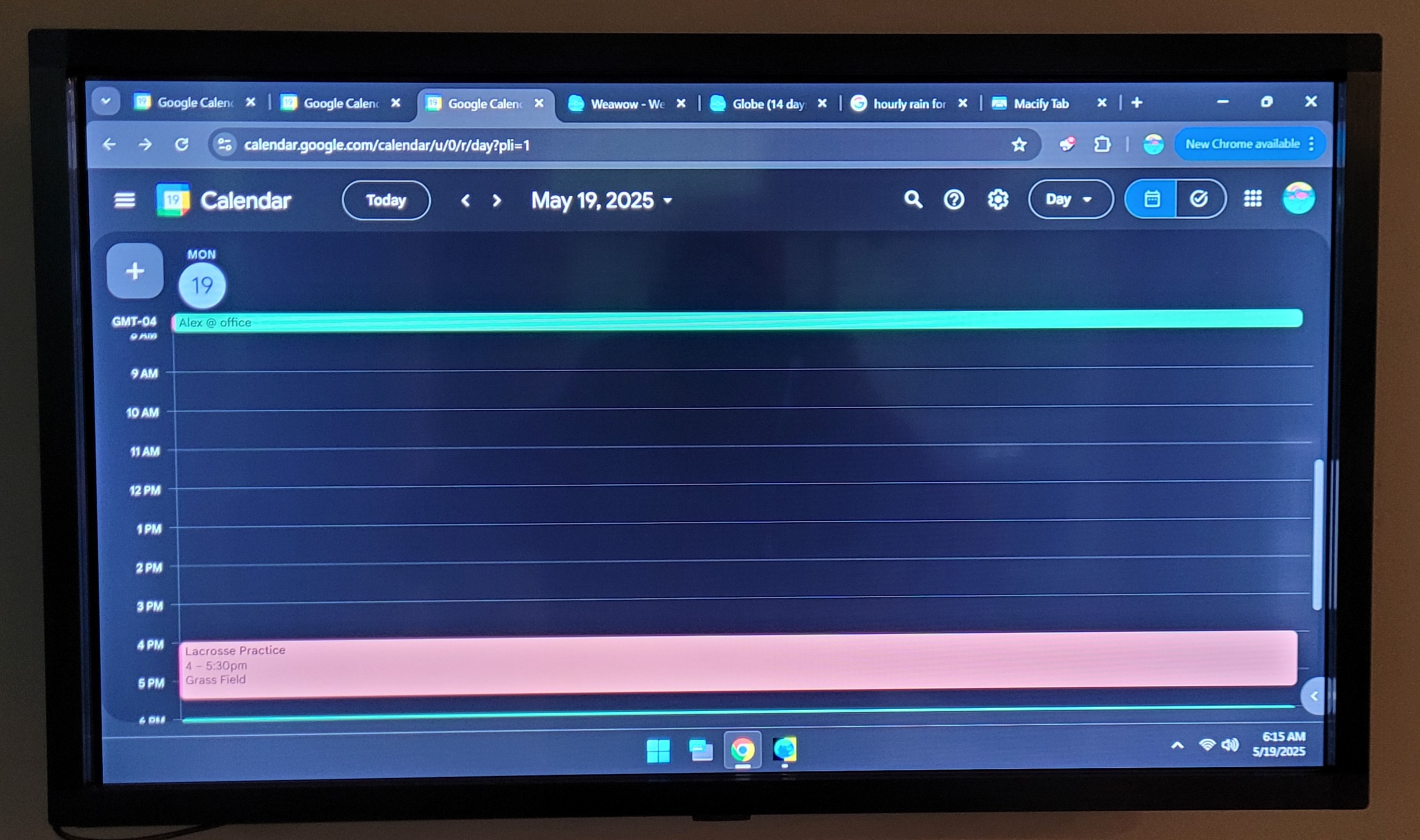
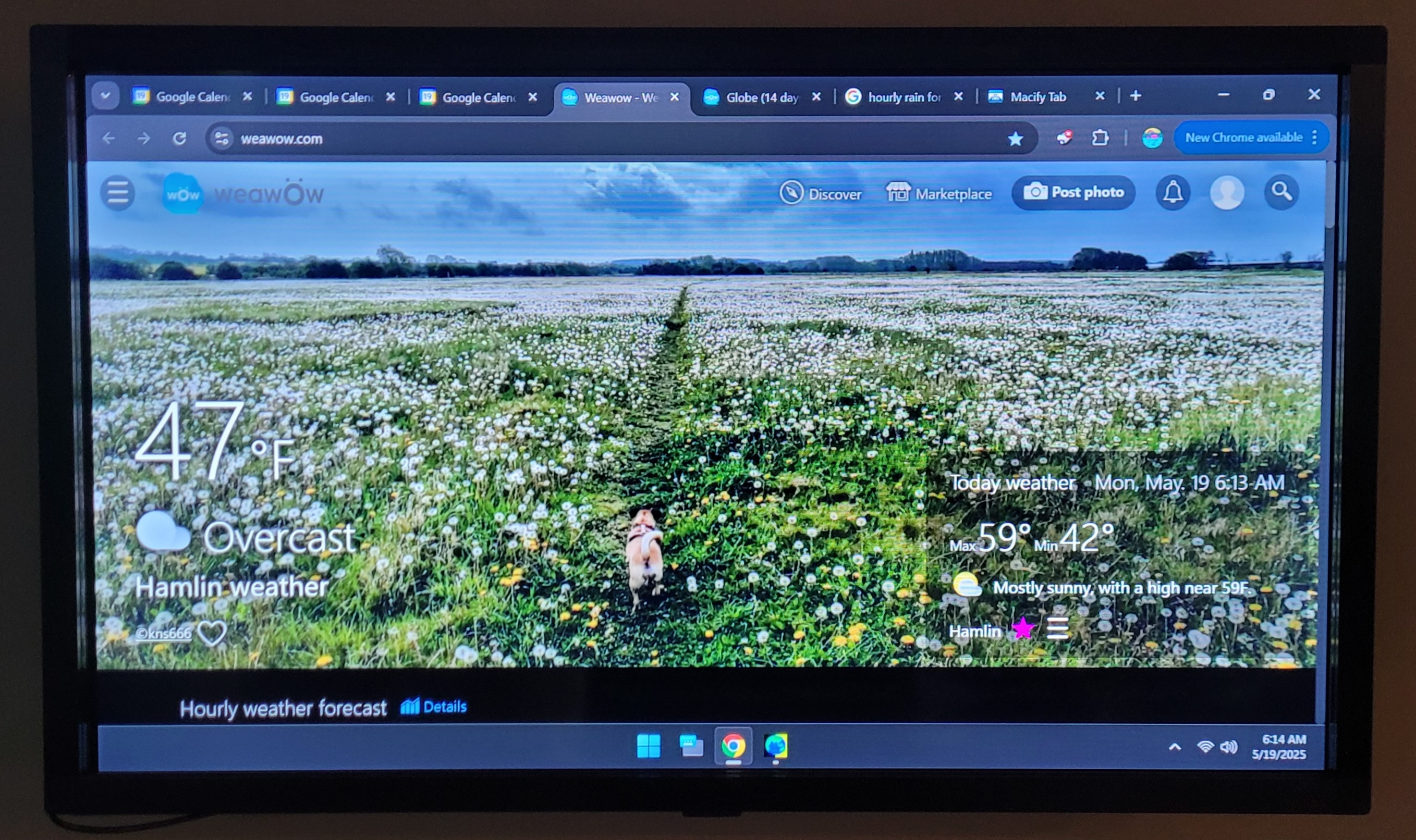
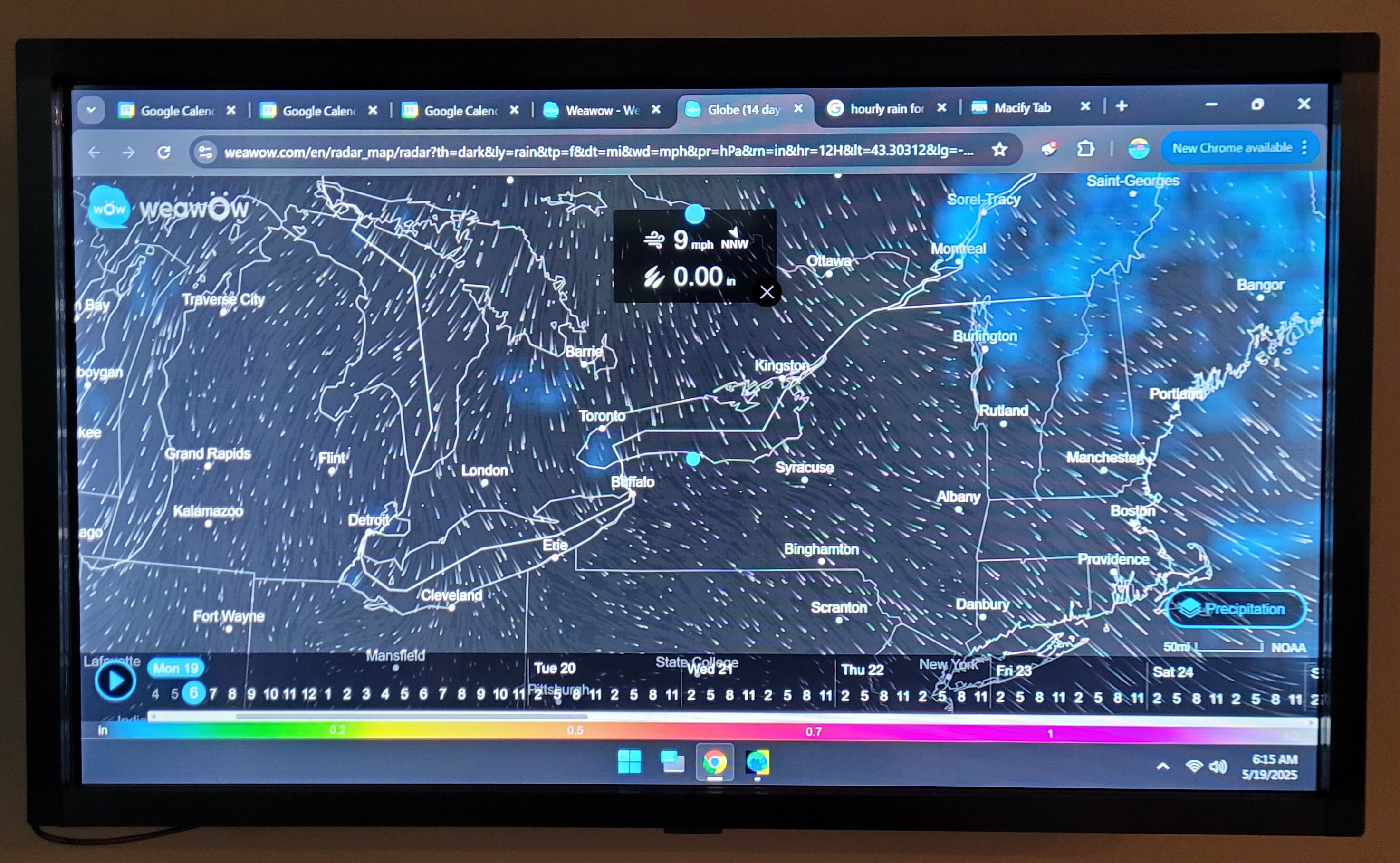
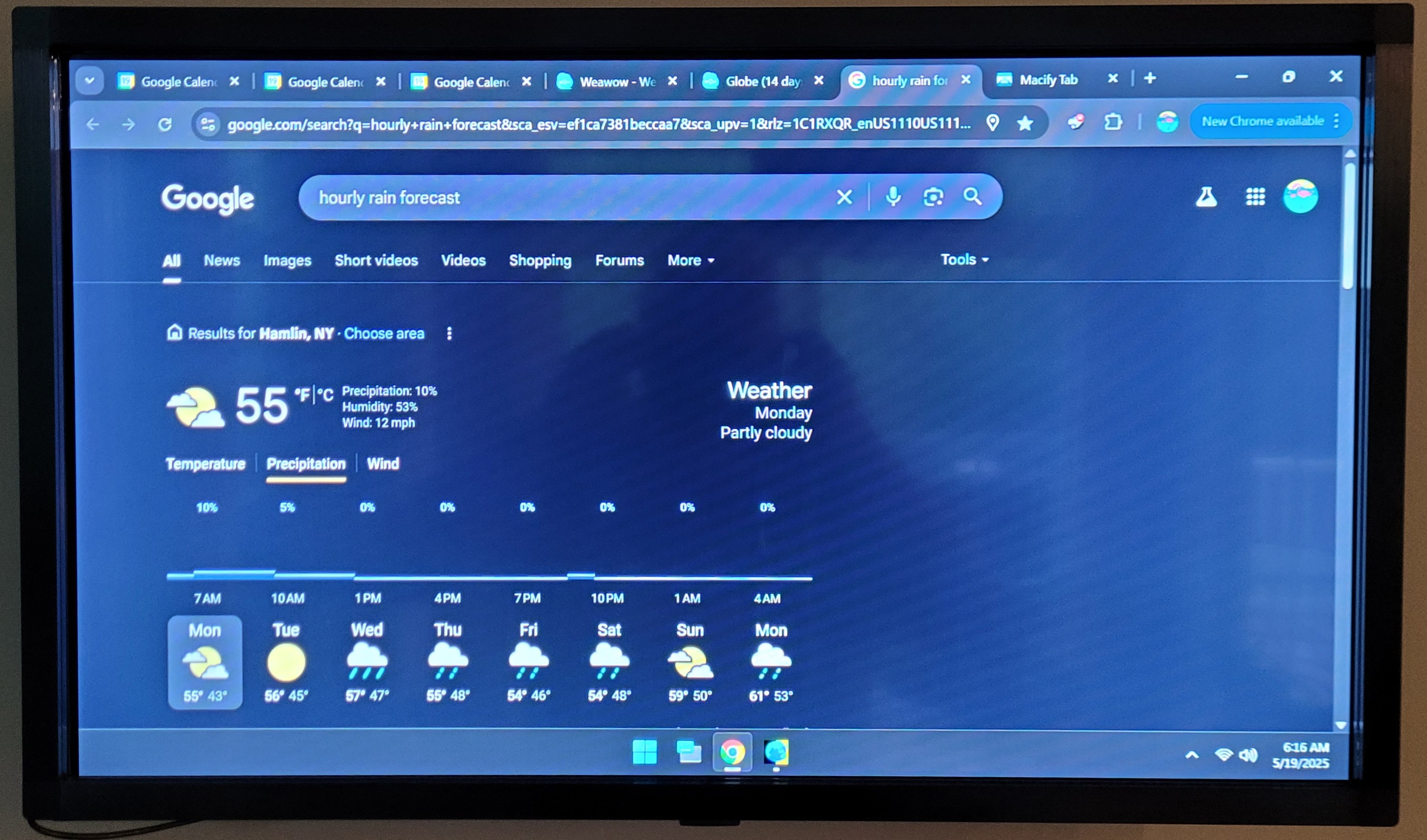
A brief tangent on Geochron clocks#
I had at some point discovered Geochron clocks. I was fascinated by the display of the world map, showing which sections of the world were in daytime and nighttime, all done mechanically. These displays have been around since the 60’s and cost thousands of dollars. I really wanted one, but there was no way I was going to spend that kind of money. I figured someone must have made a digitial version. After some searching, I found Time Mapper UHD. It has quite a lot of capabilities, including showing real time positions for just about any satellite in space. All for a $25 lifetime license. I quickly installed it to show the world map full screen. Ok, end of tangent.
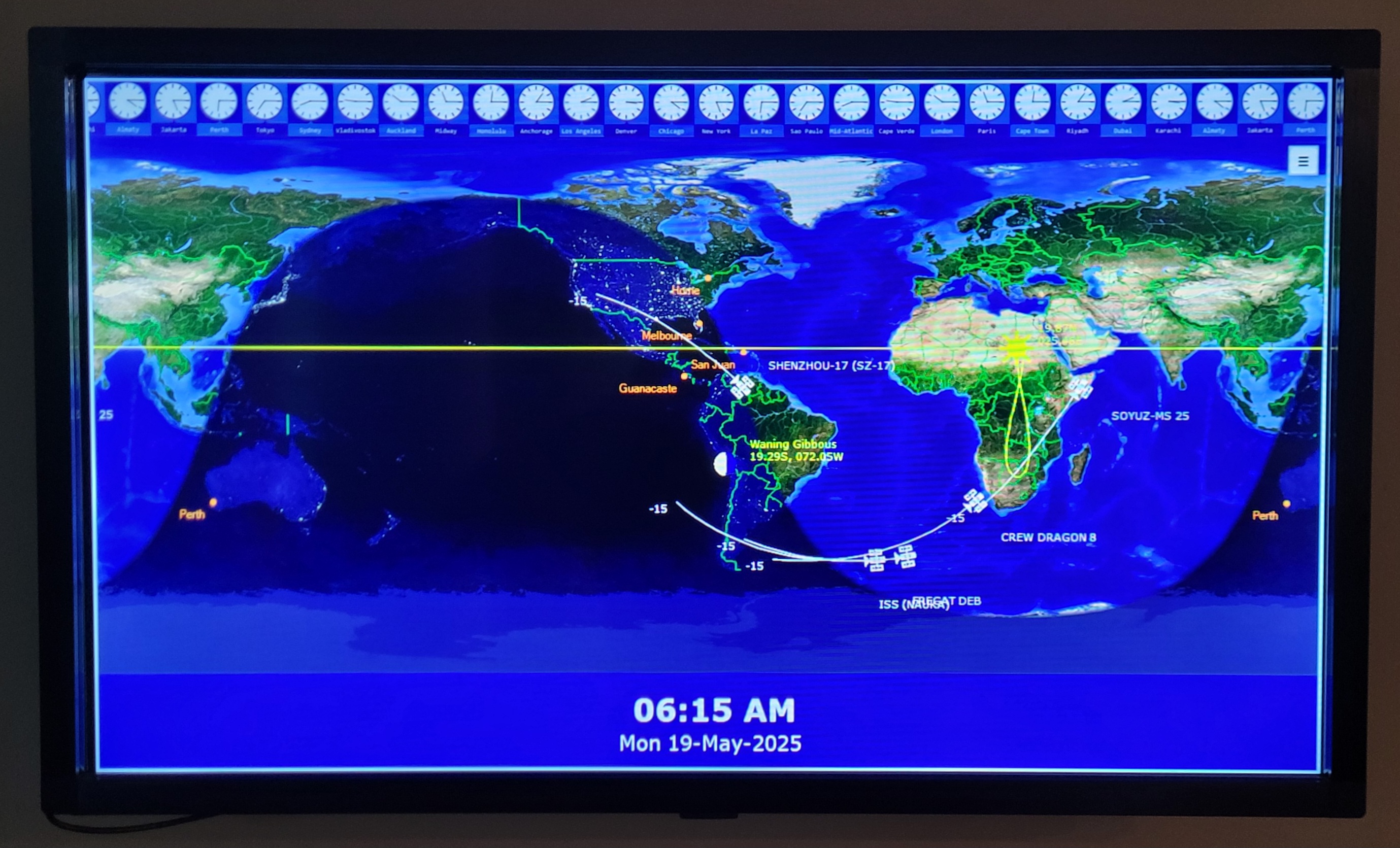
Time Mapper UHD. It can display tons of info, though I keep it to a minimum.
Linux apps?#
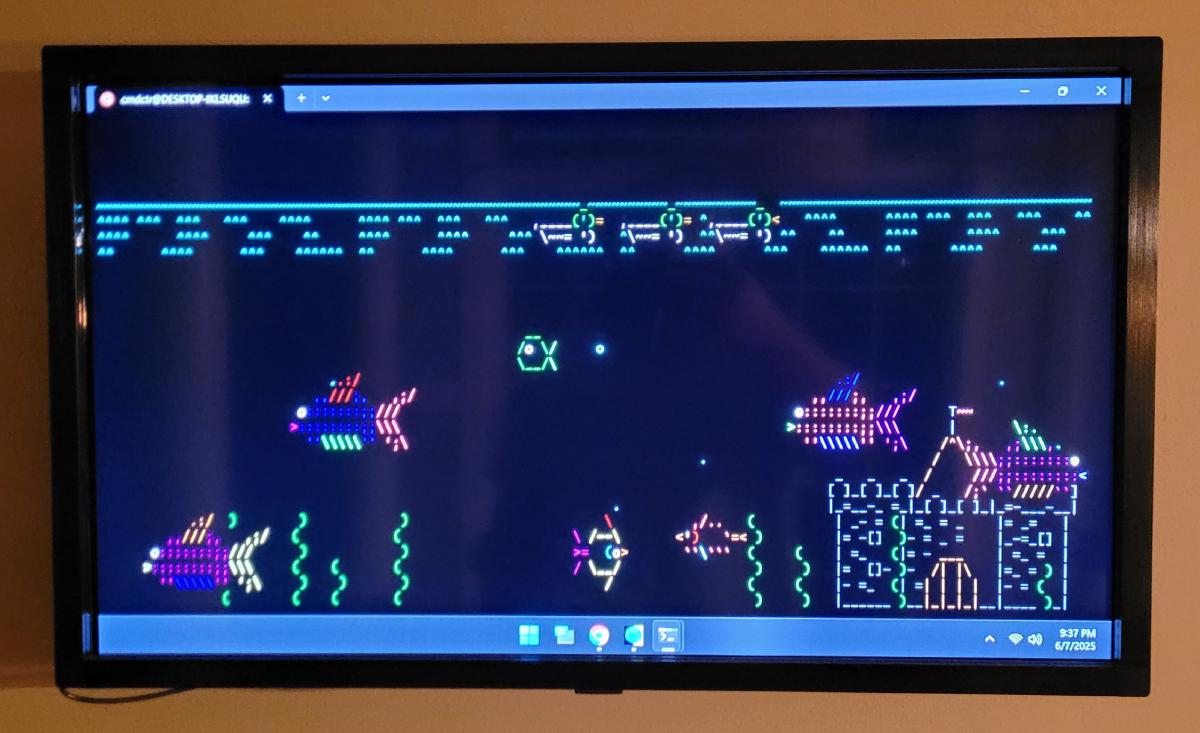
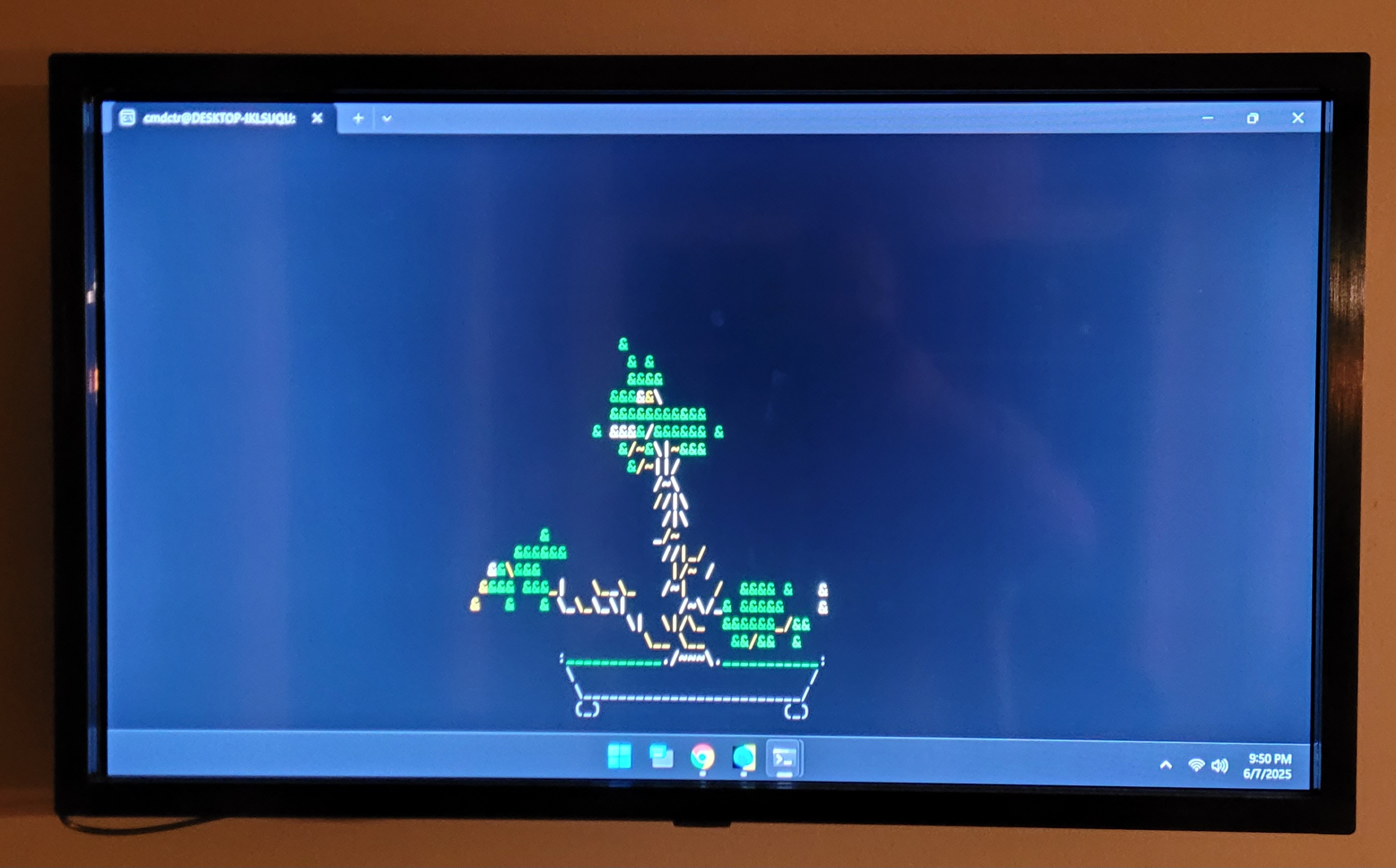
As a Linux user, I had been playing around with various command line applications. Two apps that had caught my attention are asciiquarium and cbonsai. Asciiquarium is basically a fishtank, but everything is drawn in ASCII characters. Cbonsai “grows” a bonsai tree in a terminal window, also in ASCII. How cool would it be if I could display these in the Command Center! But how? Thanks for the power of the Windows Subsystem for Linux (WSL), I now have an instance of Ubuntu Linux running to display two separate terminals with these two applications. This came with the added bonus of causing severe eye rolls from everyone in my family.
Asciiquarium Cbonsai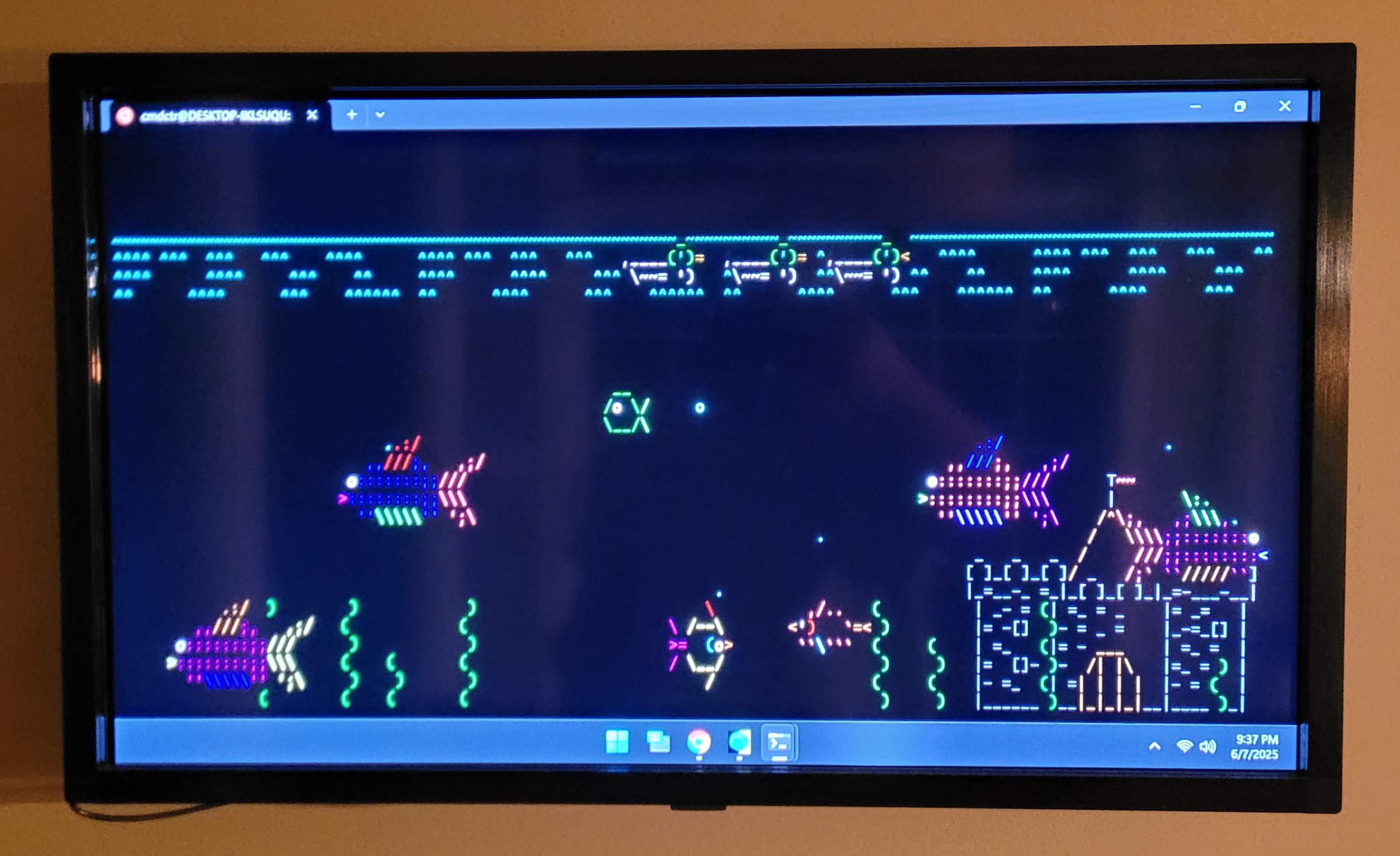
Cycling through all the apps#
“But wait,” you might say. “How do you alternate between the Chrome browser and the various other applications?” Well, this is where AutoHotkey comes in. I wrote a simple script that will press “Alt+Esc” every 5 minutes. “Alt+Esc” is the same as “Alt+Tab” but doesn’t display window preview, so it looks nicer.
Summary/Benefits#
So in the end I put together a system that meets the initial requirements, is way cheaper than a pre-built solution, and because it’s a Windows PC, gives me tons of flexibility for what to display. Oh, and since it is a Roku TV, I can easily switch it to watch TV. If you like to tinker this is a great project.